Showing posts with label tech tips. Show all posts

Thursday, October 18, 2007

Converting Audio Files to MP3

geeks.com
By Scott Nesbitt

If there's one thing that the computer world isn't short of, it's audio file formats. There are literally dozens of them. You've probably heard of a few, like WAV, WMA, RAM, ACC, FLAC , OGG , and others. It can be a confusing maze of acronyms and formats that leaves your head spinning.

It's safe to say that MP3 is the most popular audio format around. It's supported by every digital audio player on the market and in every media player – regardless of whether you're using Windows, Mac OS, or Linux. Not every audio file that you encounter will be an MP3, though. As such, you might not be able to play it on your MP3 player or media player. To get the file to play on your hardware or software, your best bet is to transform it to MP3.....


Read the full article here

Sunday, September 23, 2007

Disable Autorun

Name: Autorun... my computer is lucky to be crawling!
Category: Removing useless "features"
Operating System: These instructions are for XP other Operating Systems instructions click here
Difficulty: Moderate computer knowledge and nerves of steel

What is autorun...?

Autorun was another fantastic idea from Microsoft. This was the actual conversation about it at Microsoft headquarters*
MS employee 1: Lets make peoples lives easier by making Cd's run automatically when they insert the disk. MS employee 2: Great Idea

Well even though it was a great idea there are two fatal problems with this "feature"
a) spyware and viruses on a CD just might use this "feature" to autorun without your knowledge or permission
b) it's really really annoying

*this may be completely made up

How do I stop/get rid of it...?
There are 3 different ways of doing this:

1. Hold the shift key when you put a CD in your drive

2. This will remove autorun in most cases (and it also allows you to choose)

  • Open My Computer.
  • Right-click the desired CD-ROM and select Properties from the menu.
  • Select the AutoPlay tab.
  • Select each item from the pulldown list and for the Action to perform, select "Take no action" to disable autorun, or pick the appropriate action to take if enabling autorun.
  • Select OK.

3. To be rid of it completely you need to edit the registry. This should not be done if you don't have some decent computer knowledge, but if you follow these steps carefully it does work.

a)
In Windows Click Start, then Click Run

b) Type regedit -- Click OK

c) Click (one after the other) > HKEY_LOCAL_MACHINE > SYSTEM > CurrentControlSet > Services > Cdrom>

d) Double click "Autorun" the value is set to 1 by default, change it to zero.

e) Click OK ---> Now restart, that's it!

Is that it...?
Yes autorun should now be disabled and you should be safe again from another great "feature."

If you found this tech tip useful consider subscribing to this blog for more (completely free)
AddThis Feed Button

Tuesday, September 18, 2007

Classic start menu for Vista - Vista Video Tip

Name: I hate Vista's new start menu?
Category: Aesthetic changes
Operating System: Windows Vista
Difficulty: Anyone who can watch TV can do this

What is this all about...?
I have many people emailing me with the following complaint - I hate Vista's start menu and I want the old menu back! Well luckily Microsoft thought that a few people would have the same complaint and they have included a way to revert to the old start menu. So this is what this weeks Vista Video Tutorial is about. Follow the video and you can't go wrong!


Wednesday, September 12, 2007

Windows Vista Video Tutorial - Remove the sidebar

Name: Sidekick, sidebar what is the difference?
Category: Removing stuff and Speed up Windows Vista
Operating System: Windows Vista
Difficulty: Anyone who can watch TV can do this

What is all this about...?
Windows Vista is supposed to be the greatest thing ever right ("The wow starts now" and all that or maybe VISTA stands for Viruses, Intruders, Spyware, Trojans and Adware... who knows?) Whatever we think about this new offering from Microsoft most of us are going to have to use it as some point in the future and this tip will help you remove one of its annoying little "features" that many people hate.

Have you installed Windows Vista only to be greeted by that whopping big sidebar you wouldn't use if it came with a coffee maker and want to get rid of it? Then this video tutorial will take the pain away for all those who can't stand this little "improvement." It will remove the sidebar and stop it from loading every time Windows starts. Warning - Removing the sidebar might even speed up your computer.

How do I do it...?
Watch the video and copy what the magic mouse does on the screen and what the man tells you - easy..? You bet!

Special thanks to pc wiz kid for making these great vids!

Thursday, August 30, 2007

How to find your IP address

Name: IP address...? I've just learnt my home address.
Category: The Internet
Operating System: Any
Difficulty: My great grandma can do this with her eyes shut

A quick tip today. If you want to know your IP address for gaming or other reasons it is a very simple process.

(click to enlarge)
1. Goto http://www.whatismyip.com/ and it will tell you your IP address.

Easy...? You bet

Tuesday, August 28, 2007

The Top Keyboard Shortcuts for Windows

Name: Shortcuts aren't always bad
Category: Saving you time (hopefully)
Operating System: MOST
Difficulty: My grandma has the skills to do this and therefore so do you!

Have you ever been clicking away with your mouse (copy and paste, copy and paste, file and open) and thought to yourself there has to be a better way. Well I am posting today to tell you there is a better and (slightly) quicker way to do things on you computer.

What is a keyboard shortcut...?
Well like when you drive in a car and take a shortcut it saves you time (unless you are my wife), keyboard shortcuts save time for common tasks that people usually do with their mouse. Some shortcuts are built into your keyboard like:

  • Home key
  • End Key
  • Page down key etc.
However most of the following keyboard shortcuts are done by holding one of the following keys and then hitting a button:
  • CRTL key
  • ALT Key
  • Shift Key
So for example a keyboard shortcut might read CRTL - C (copy). So this would mean that you would highlight the text as usual and instead of right clicking and selecting copy from the menu you would hold down the CTRL key and press C and the text would be copied (is this making sense yet?)

The most popular keyboard shortcuts in Windows (these may also work on other operating systems and many programs that run in Windows):
Remember to hold down the first key if there is another key after it (CRTL + V means hold control key and press v)
  • CTRL+C (Copy)
  • CTRL+X (Cut)
  • CTRL+V (Paste)
  • CTRL+Z (Undo)
  • DELETE (Delete)
  • SHIFT+DELETE (Delete the selected item permanently without placing the item in the Recycle Bin)
  • CTRL while dragging an item (Copy the selected item)
  • CTRL+SHIFT while dragging an item (Create a shortcut to the selected item)
  • F2 key (Rename the selected item)
  • CTRL+RIGHT ARROW (Move the insertion point to the beginning of the next word)
  • CTRL+LEFT ARROW (Move the insertion point to the beginning of the previous word)
  • CTRL+DOWN ARROW (Move the insertion point to the beginning of the next paragraph)
  • CTRL+UP ARROW (Move the insertion point to the beginning of the previous paragraph)
  • CTRL+SHIFT with any of the arrow keys (Highlight a block of text)
  • SHIFT with any of the arrow keys (Select more than one item in a window or on the desktop, or select text in a document)
  • CTRL+A (Select all)
  • F3 key (Search for a file or a folder)
  • ALT+ENTER (View the properties for the selected item)
  • ALT+F4 (Close the active item, or quit the active program)
  • ALT+ENTER (Display the properties of the selected object)
  • ALT+SPACEBAR (Open the shortcut menu for the active window)
  • CTRL+F4 (Close the active document in programs that enable you to have multiple documents open simultaneously)
  • ALT+TAB (Switch between the open items)
  • ALT+ESC (Cycle through items in the order that they had been opened)
  • F6 key (Cycle through the screen elements in a window or on the desktop)
  • F4 key (Display the Address bar list in My Computer or Windows Explorer)
  • SHIFT+F10 (Display the shortcut menu for the selected item)
  • ALT+SPACEBAR (Display the System menu for the active window)
  • CTRL+ESC (Display the Start menu)
  • ALT+Underlined letter in a menu name (Display the corresponding menu)
  • Underlined letter in a command name on an open menu (Perform the corresponding command)
  • F10 key (Activate the menu bar in the active program)
  • RIGHT ARROW (Open the next menu to the right, or open a submenu)
  • LEFT ARROW (Open the next menu to the left, or close a submenu)
  • F5 key (Update the active window)
  • BACKSPACE (View the folder one level up in My Computer or Windows Explorer)
  • ESC (Cancel current task)
  • SHIFT when you insert a CD/DVD into the drive (Prevent it from automatically playing)

Windows only shortcuts:
These are Windows only shortcuts. To use these hold down the Windows logo on your keyboard and then press the desired key (it will look something like this)
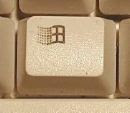
  • Windows Logo (Display or hide the Start menu)
  • Windows Logo+BREAK (Display the System Properties dialog box)
  • Windows Logo+D (Display the desktop)
  • Windows Logo+M (Minimize all of the windows)
  • Windows Logo+SHIFT+M (Restore the minimized windows)
  • Windows Logo+E (Open My Computer)
  • Windows Logo+F (Search for a file or a folder)
  • CTRL+Windows Logo+F (Search for computers)
  • Windows Logo+F1 (Display Windows Help)
  • Windows Logo+ L (Lock the keyboard)
  • Windows Logo+R (Open the Run dialog box)
  • Windows Logo+U (Open Utility Manager)
Is that is...?
There are literally hundreds more, but I will be posting some more (firefox and Internet explorer) later if you would like to keep updated on my tips you might consider subscribing to this blog.
AddThis Feed Button