Showing posts with label keyboard. Show all posts

Sunday, September 16, 2007

Internet Explorer Keyboard Shortcuts

Name: Shortcuts aren't always bad (Part 3)
Category: Saving you time
Operating System: MOST
Difficulty: Your grandma could do this!

What is a keyboard shortcut...?
If you don't know then you might like to read my last article The top keyboard shortcuts for Windows

What is Internet Explorer?
Internet Explorer is a web browser that you are possibly using to view this web site.

In this post I am listing the most popular keyboard shortcuts for all you Internet Exploer users (for firefox users check out my keyboard shortcuts for firefox post)


So what are the shortcuts...?
Here they are - enjoy
(
Remember to hold down the first key if there is another key after it (CRTL + D means hold control key and press D)

The Basics

  • Stop page from loading
    Esc
  • Refresh a page
    F5
  • Set focus on address box
    ALT+D
  • Go back a page
    ALT+Left Arrow
  • Go forward a page
    ALT+Right Arrow
  • Open link in new window
    Shift+Click
  • Add site to favorites
    CTRL+D
  • Open context menu
    Shift+F10

Tabs

  • Open new tab
    CTRL+T
  • Open link in new tab
    CTRL+Shift+Click
  • Open link in new behind current tab
    CTRL+Click or Middle mouse button over link
  • Switch between tabs
    CTRL+Tab or CTRL+Shift+Tab
  • Close tab
    CTRL+W or Click middle mouse button over tab
  • Close all other tabs
    CTRL+ALT+F4
  • Jump to tab
    CTRL+tab number
  • Open quick tabs
    CTRL+Q

Search

  • Set focus in search box
    CTRL+E
  • Change search provider while search box active
    CTRL+Down arrow
  • Search in new tab
    ALT+Enter

Zooming

  • Zoom in
    CTRL+(+ key) or CTRL+Mouse wheel up
  • Zoom out
    CTRL+(- key) or CTRL+Mouse wheel down
  • Zoom 100%
    CTRL+0
  • Change text size
    CTRL+Mouse wheel up or down
Is that it...?
No there are lots more, but these are the most common and will get you started. I hope that these save you some time!

Thursday, September 13, 2007

Firefox Keyboard Shortcuts

Name: Shortcuts aren't always bad (Part 2)
Category: Saving you time
Operating System: MOST
Difficulty: My grandma can definitely do this and she only has one good eye

What is a keyboard shortcut...?
If you don't know I suggest you read my last article The top keyboard shortcuts for Windows

What is Firefox...?
Firefox is a web browser (the thing you use to view web pages) that is a competitor for Internet Explorer (the one you might possibly be using). It is supposedly safer, more secure and faster than Internet Explorer and is becoming more and more popular all the time (if you are interested in trying it there is a link to download it in the menu on the right).

In this post I am listing the most popular keyboard shortcuts for all you firefox users (I will do one for all you Internet Explorer fans too - just not right now)

So what are the shortcuts...?
Here they are - enjoy
(
Remember to hold down the first key if there is another key after it (CRTL + D means hold control key and press D)

Back Alt+Left Arrow (or Backspace on Windows)
Bookmarks Ctrl+B or Ctrl+I
Bookmark This Page Ctrl+D
Bookmark All Tabs Ctrl+Shift+D
Caret Browsing F7
Clear Personal Data Ctrl+Shift+Del
Close Tab Ctrl+W or Ctrl+F4
Close Window Ctrl+Shift+W or Alt+F4
Complete .com Address Ctrl+Enter
Complete .net Address Shift+Enter
Complete .org Address Ctrl+Shift+Enter
Copy Ctrl+C or Ctrl+Insert
Cut Ctrl+X or Shift+Del
Delete Del
Downloads Ctrl+J (Windows & Mac OS X only), Ctrl+Y (Linux only)
Find Again F3 or Ctrl+G
Find in This Page (Find As You Type) Ctrl+F or /
Find in This Page (Find As You Type): links only ' (apostrophe key)
Find Previous Shift+F3 or Shift+Ctrl+G
Force Reload (override cache) Ctrl+F5 or Ctrl+Shift+R
Forward Alt+Right Arrow (or Shift+Backspace on Windows)
Full Screen F11 (not implemented on Mac OS X)
History Ctrl+H
Home Alt+Home
Location Bar F6 or Ctrl+L or Alt+D
New Tab Ctrl+T
Next Frame F6
Next Tab Ctrl+Tab or Ctrl+PageDown or Ctrl+Alt+Right Arrow
New Window Ctrl+N
Open File Ctrl+O
Open Location in New Tab Alt+Enter
Page Source Ctrl+U
Paste Ctrl+V or Shift+Insert
Previous Frame Shift+F6
Previous Tab Ctrl+Shift+Tab or Ctrl+PageUp or Ctrl+Alt+Left Arrow
Print Ctrl+P
Redo Ctrl+Y (NOT Linux) or Ctrl+Shift+Z
Reload F5 or Ctrl+R
Save Page As Ctrl+S
Search see Find and Web Search
Select All Ctrl+A
Select Next Search Engine in Search Bar Ctrl+Down
Select Previous Search Engine in Search Bar Ctrl+Up
Select Tab [1 to 9] Ctrl+[1 to 9]
Stop Esc
Text Size: Decrease Ctrl+-
Text Size: Increase Ctrl++
Text Size: Normal Ctrl+0
Web Search Ctrl+K (or Ctrl+E on Windows & Mac OS X, or Ctrl+J on Unix)
Undo Ctrl+Z

Is that it...?
No there are lots more, but these are the most commonly used ones. I hope that saves you some time when using firefox!

Tuesday, August 28, 2007

The Top Keyboard Shortcuts for Windows

Name: Shortcuts aren't always bad
Category: Saving you time (hopefully)
Operating System: MOST
Difficulty: My grandma has the skills to do this and therefore so do you!

Have you ever been clicking away with your mouse (copy and paste, copy and paste, file and open) and thought to yourself there has to be a better way. Well I am posting today to tell you there is a better and (slightly) quicker way to do things on you computer.

What is a keyboard shortcut...?
Well like when you drive in a car and take a shortcut it saves you time (unless you are my wife), keyboard shortcuts save time for common tasks that people usually do with their mouse. Some shortcuts are built into your keyboard like:

  • Home key
  • End Key
  • Page down key etc.
However most of the following keyboard shortcuts are done by holding one of the following keys and then hitting a button:
  • CRTL key
  • ALT Key
  • Shift Key
So for example a keyboard shortcut might read CRTL - C (copy). So this would mean that you would highlight the text as usual and instead of right clicking and selecting copy from the menu you would hold down the CTRL key and press C and the text would be copied (is this making sense yet?)

The most popular keyboard shortcuts in Windows (these may also work on other operating systems and many programs that run in Windows):
Remember to hold down the first key if there is another key after it (CRTL + V means hold control key and press v)
  • CTRL+C (Copy)
  • CTRL+X (Cut)
  • CTRL+V (Paste)
  • CTRL+Z (Undo)
  • DELETE (Delete)
  • SHIFT+DELETE (Delete the selected item permanently without placing the item in the Recycle Bin)
  • CTRL while dragging an item (Copy the selected item)
  • CTRL+SHIFT while dragging an item (Create a shortcut to the selected item)
  • F2 key (Rename the selected item)
  • CTRL+RIGHT ARROW (Move the insertion point to the beginning of the next word)
  • CTRL+LEFT ARROW (Move the insertion point to the beginning of the previous word)
  • CTRL+DOWN ARROW (Move the insertion point to the beginning of the next paragraph)
  • CTRL+UP ARROW (Move the insertion point to the beginning of the previous paragraph)
  • CTRL+SHIFT with any of the arrow keys (Highlight a block of text)
  • SHIFT with any of the arrow keys (Select more than one item in a window or on the desktop, or select text in a document)
  • CTRL+A (Select all)
  • F3 key (Search for a file or a folder)
  • ALT+ENTER (View the properties for the selected item)
  • ALT+F4 (Close the active item, or quit the active program)
  • ALT+ENTER (Display the properties of the selected object)
  • ALT+SPACEBAR (Open the shortcut menu for the active window)
  • CTRL+F4 (Close the active document in programs that enable you to have multiple documents open simultaneously)
  • ALT+TAB (Switch between the open items)
  • ALT+ESC (Cycle through items in the order that they had been opened)
  • F6 key (Cycle through the screen elements in a window or on the desktop)
  • F4 key (Display the Address bar list in My Computer or Windows Explorer)
  • SHIFT+F10 (Display the shortcut menu for the selected item)
  • ALT+SPACEBAR (Display the System menu for the active window)
  • CTRL+ESC (Display the Start menu)
  • ALT+Underlined letter in a menu name (Display the corresponding menu)
  • Underlined letter in a command name on an open menu (Perform the corresponding command)
  • F10 key (Activate the menu bar in the active program)
  • RIGHT ARROW (Open the next menu to the right, or open a submenu)
  • LEFT ARROW (Open the next menu to the left, or close a submenu)
  • F5 key (Update the active window)
  • BACKSPACE (View the folder one level up in My Computer or Windows Explorer)
  • ESC (Cancel current task)
  • SHIFT when you insert a CD/DVD into the drive (Prevent it from automatically playing)

Windows only shortcuts:
These are Windows only shortcuts. To use these hold down the Windows logo on your keyboard and then press the desired key (it will look something like this)
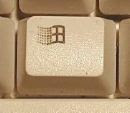
  • Windows Logo (Display or hide the Start menu)
  • Windows Logo+BREAK (Display the System Properties dialog box)
  • Windows Logo+D (Display the desktop)
  • Windows Logo+M (Minimize all of the windows)
  • Windows Logo+SHIFT+M (Restore the minimized windows)
  • Windows Logo+E (Open My Computer)
  • Windows Logo+F (Search for a file or a folder)
  • CTRL+Windows Logo+F (Search for computers)
  • Windows Logo+F1 (Display Windows Help)
  • Windows Logo+ L (Lock the keyboard)
  • Windows Logo+R (Open the Run dialog box)
  • Windows Logo+U (Open Utility Manager)
Is that is...?
There are literally hundreds more, but I will be posting some more (firefox and Internet explorer) later if you would like to keep updated on my tips you might consider subscribing to this blog.
AddThis Feed Button